
Meta Ads
Connect your Meta Ads account to sync Facebook and Instagram advertising data.
URL parameters setup
Setting up URL parameters
Add the following URL parameters to your ads:
trdt_cpid={{campaign.id}}&trdt_agid={{adset.id}}&trdt_ctid={{ad.id}}
You can set URL parameters at the account, campaign, or ad level. Here is how to bulk edit URL parameters at the ad level:
- In Meta Ads Manager, navigate to the Ads tab
- Select the ads to edit
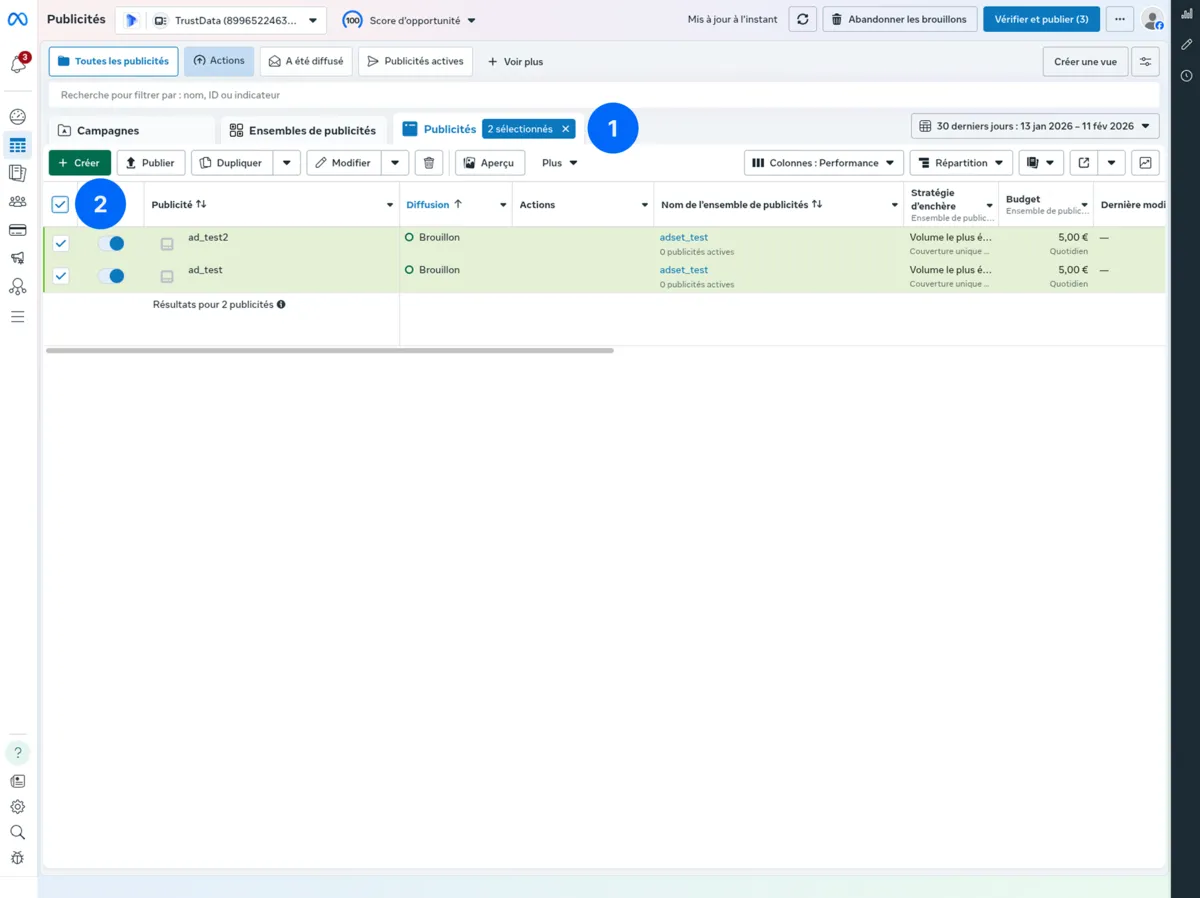
- Click the Edit button in the toolbar
- From the dropdown menu, select URL parameters
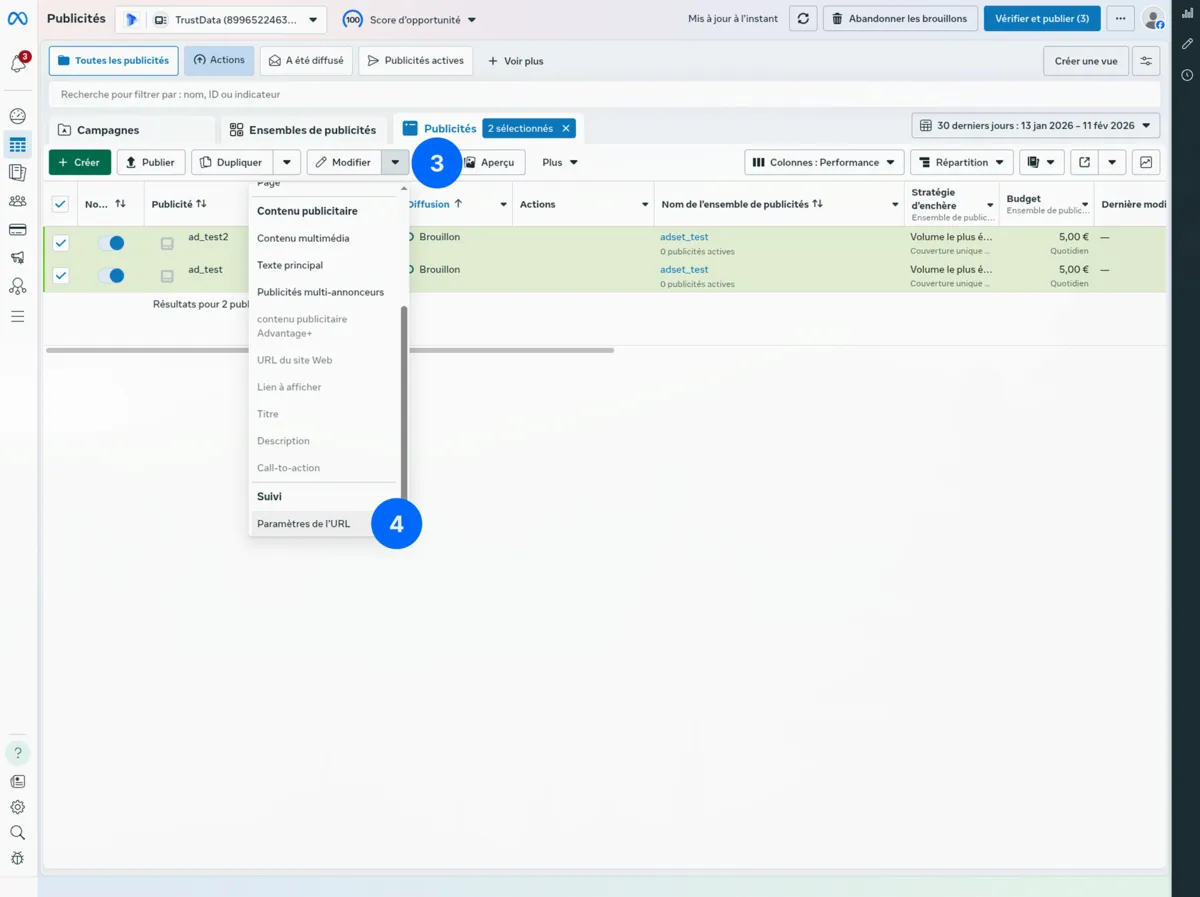
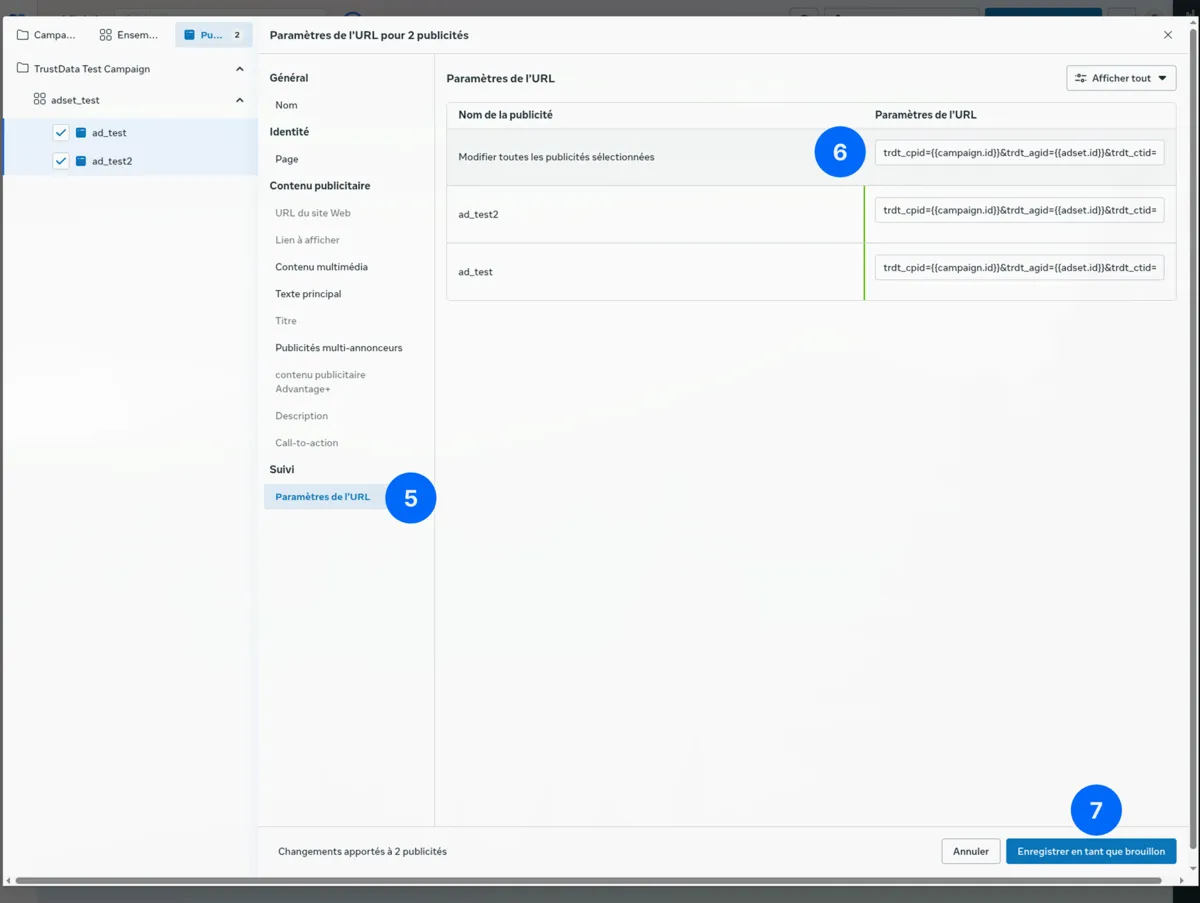
- In the left sidebar, click URL parameters under Tracking
- Enter the tracking parameters in the URL parameters field for all selected ads or individually per ad
- Click Save as draft
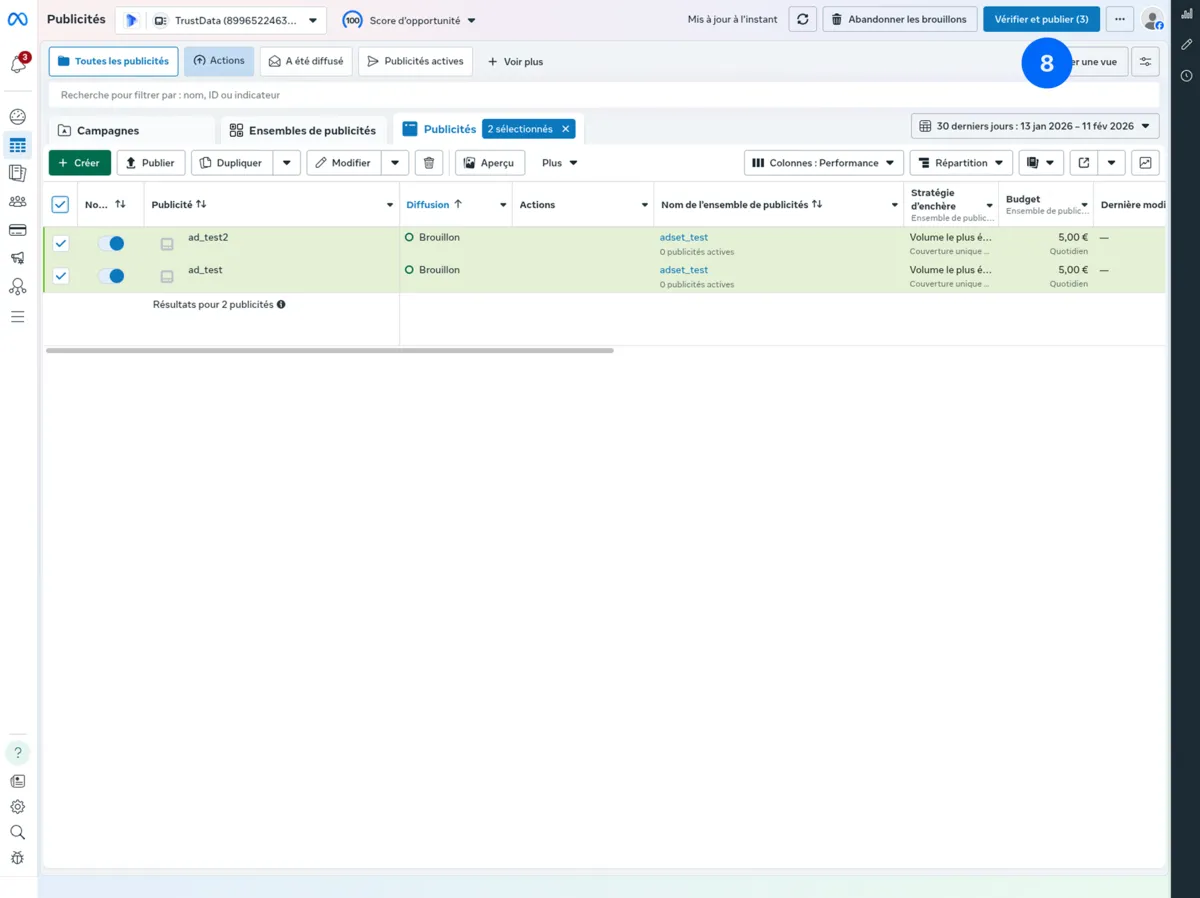
- Click Review and publish to apply the changes to your ads
Available dynamic parameters
| Parameter | Description | Example Value |
|---|---|---|
{{campaign.id}} | Campaign ID | 23851234567890 |
{{campaign.name}} | Campaign name | Summer_Sale_2024 |
{{adset.id}} | Ad set ID | 23851234567891 |
{{adset.name}} | Ad set name | US_25-34_Interest |
{{ad.id}} | Ad ID | 23851234567892 |
{{ad.name}} | Ad name | Video_Creative_1 |
{{placement}} | Placement | Facebook_Feed |
{{site_source_name}} | Platform | fb, ig, an |
fbclid to ad clicks.Verify your setup
- Preview an ad in Ads Manager
- Click on the ad preview
- Check the URL in your browser:
Expected URL:
https://example.com/landing?trdt_cpid=23851234567890&trdt_agid=23851234567891&trdt_ctid=23851234567892&fbclid=IwAR3...
Connecting in TrustData
After you add the URL parameters:
- Go to Settings → Data Sources
- Click Add Data Source → Meta Ads
- Click Connect with Facebook
- Log in with your Facebook account
- Select the ad accounts to sync
- Click Done, then Save
Required permissions
TrustData requests these permissions:
ads_read- Read ad account dataads_management- Access campaign structure (read-only usage)
TrustData only reads data. We never modify your campaigns.
Business manager access
For Business Manager accounts:
- Check that your Facebook user has Analyst or higher access
- The Business Manager must claim the ad accounts
- Select the ad accounts during connection
Synced data
| Data Type | Description |
|---|---|
| Campaigns | Name, objective, status, budget |
| Ad Sets | Name, targeting, budget, schedule |
| Ads | Creative, name, status |
| Metrics | Impressions, reach, clicks, spend, CPM, CPC |
Date range
- Historical: Last 90 days on first sync
- Ongoing: Daily incremental sync
Breakdown data
Metrics are synced with these breakdowns:
- By day
- By campaign/ad set/ad
- By platform (Facebook, Instagram, Audience Network)
Attribution matching
TrustData matches Meta clicks to conversions:
TrustData captures fbclid only to forward conversions to Meta CAPI when the visitor consents. Consent masking drops it. It is never the attribution key.
View-through attribution
Meta reports view-through conversions (the user saw the ad but did not click). TrustData uses click-through attribution for accuracy.
To compare with Meta's view-through data, check the Meta Ads dashboard.
Conversion forwarding
TrustData can forward server-side conversion events directly to the Meta Conversions API (CAPI). This improves match rates and gives Meta better optimization signals.
Getting a system user access token
A system user token in Meta Business Manager is the most reliable option:
- Go to Meta Business Settings → Users → System Users
- Click Add to create a system user (or select an existing one)
- Set the role to Admin
- Click Generate New Token
- Select your app and grant the
ads_managementpermission - Copy the generated token
Finding your Pixel ID
- Go to Meta Events Manager
- Select your pixel from the left sidebar
- The Pixel ID appears at the top of the page (a 15–16 digit number, e.g.,
123456789012345)
Configuring in TrustData
- Go to Settings → Attribution IDs → select your ID → Edit Tracking Config
- Open the Forwarding tab
- Under Meta Conversions API:
- Enable Meta CAPI
- Enter your Pixel ID
- Paste the system user Access Token
- Click Save Configuration
If you leave the access token empty, TrustData uses the OAuth token from your connected Meta Ads data source.
Troubleshooting
"No ad accounts found"
- Verify that your Facebook account has access to ad accounts
- Check Business Manager permissions
- Disconnect and reconnect the data source
"Permission denied"
- Check that you have Analyst access or higher
- Check that the ad account is active (not disabled)
- Verify that Business Manager settings allow API access
"URL parameters not appearing"
- Check for conflicting URL parameters at different levels
- Campaign-level overrides account-level
- Ad-level overrides campaign-level
"fbclid not captured"
Meta adds fbclid automatically unless:
- You use a link shortener. Remove it
- Your property strips query parameters. Check your redirects
- The landing page has JavaScript errors
Instagram stories/reels
For swipe-up links in Stories:
- URL parameters work the same way
- Meta applies the parameters to the destination URL
- Verify with the preview tool