
Google Ads
Connect your Google Ads account to sync campaign data and enable attribution.
URL parameters setup
Account-level tracking template (recommended)
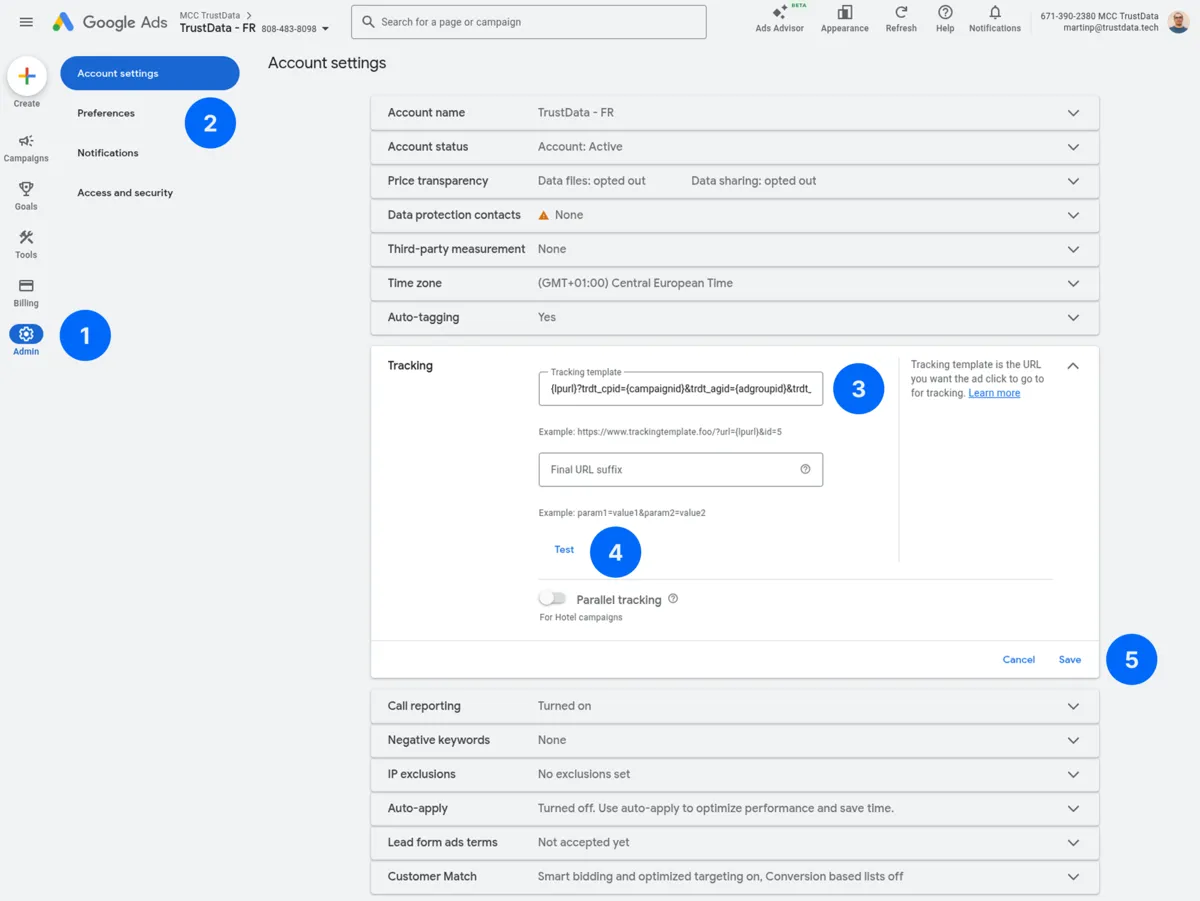
Set a tracking template at the account level so it applies to all campaigns:
- In Google Ads, click the Admin icon in the left sidebar
- Click Account settings
- Expand the Tracking section and enter the following in the Tracking template field:
{lpurl}?trdt_cpid={campaignid}&trdt_agid={adgroupid}&trdt_kwid={targetid}&trdt_ctid={creative}
- Click Test to verify the tracking template is valid
- Click Save
Available ValueTrack parameters
Use these Google Ads dynamic parameters:
| Parameter | Description | Example Value |
|---|---|---|
{gclid} | Google Click ID | CjwKCAiA... |
{campaignid} | Campaign ID | 12345678 |
{_campaign} | Campaign name (custom) | summer_sale |
{adgroupid} | Ad group ID | 98765432 |
{_adgroup} | Ad group name (custom) | blue_widgets |
{creative} | Ad ID | 11223344 |
{keyword} | Keyword that triggered ad | buy widgets |
{matchtype} | Keyword match type | b, p, e |
{device} | Device type | m, t, c |
{network} | Network type | g, s, d |
Setting up custom parameters
To use {_campaign} and {_adgroup}:
- Go to your campaign Settings
- Click Additional settings → Custom parameters
- Add:
_campaign=your-campaign-name_adgroup= (set at ad group level)
Verify your setup
Test a URL using Google's preview:
- Go to Ads & assets → select an ad
- Click the three dots → Preview
- Check the final URL includes your parameters
Expected URL:
https://example.com/landing?trdt_cpid=12345678&trdt_agid=98765432&trdt_ctid=11223344&gclid=CjwKCAiA...
Connecting in TrustData
After you add the URL parameters:
- Go to Settings → Data Sources
- Click Add Data Source → Google Ads
- Click Connect with Google
- Select your Google account
- Grant access to Google Ads data
- Select the Google Ads accounts to sync
- Click Save
Required permissions
The OAuth flow requests these scopes:
https://www.googleapis.com/auth/adwords- Read Google Ads data
TrustData only reads data. We never modify your campaigns or settings.
Synced data
| Data Type | Description |
|---|---|
| Campaigns | Name, status, budget, bidding strategy |
| Ad Groups | Name, status, CPC bid |
| Ads | Headlines, descriptions, final URLs |
| Keywords | Keyword text, match type, bid |
| Metrics | Impressions, clicks, cost, conversions |
Date range
- Historical: Last 90 days on first sync
- Ongoing: Daily incremental sync
Attribution matching
TrustData matches Google Ads clicks to conversions:
TrustData captures gclid only to forward conversions to Google Ads when the visitor consents. Consent masking drops it. It is never the attribution key.
Conversion forwarding
TrustData can upload offline conversions to Google Ads via the Conversion Upload API. This returns your first-party conversion data to Google's bidding algorithms.
How it works
Google Ads OAuth tokens expire every hour. TrustData resolves a fresh access token from your connected Google Ads data source. You do not enter a token manually.
Finding your customer ID
Your customer ID is the 10-digit number shown in the top right of Google Ads (e.g., 123-456-7890). Enter it without dashes: 1234567890.
Finding your conversion action ID
- In Google Ads, go to Goals → Conversions → Summary
- Click on the conversion action you want to use
- Look at the URL in your browser. It contains a
ctidparameter, e.g.:...ctid=7175926768... - Copy the numeric ID (e.g.,
7175926768)
Configuring in TrustData
- Go to Settings → Attribution IDs → select your ID → Edit Tracking Config
- Open the Forwarding tab
- Under Google Ads Conversion Upload:
- Enable Google Ads
- Enter your Customer ID (without dashes, e.g.,
1234567890) - Enter the Conversion Action ID (numeric, e.g.,
7175926768)
- Click Save Configuration
Troubleshooting
"No data for this account"
- Verify the Google Ads account has active campaigns
- Check that campaigns had spend in the last 90 days
- Check that you selected the correct MCC sub-account
"gclid not captured"
- Verify auto-tagging is enabled:
- Settings → Account settings → Auto-tagging → On
- Check that the tracking template is formatted correctly
- Test with Google's URL preview tool
"Attribution not working"
- Verify that the
trdt_URL parameters are in your tracking template - Check that the SDK is installed on your landing pages
- Confirm that conversions appear in Events in TrustData
Manager account (MCC) access
If you use a manager account:
- Connect with the MCC login
- Select the client accounts to sync
- Each client account syncs independently